How to fill out a PDF form online (without printing it)
Someone sends you a PDF form and the instructions say "print, fill in and scan." You don't have to. You can type straight into most PDF forms in your browser and send back a clean copy.
It works whether the form has fillable boxes or not. Here's what to do in each case.
Choose a form to fillIf the form has boxes to type in
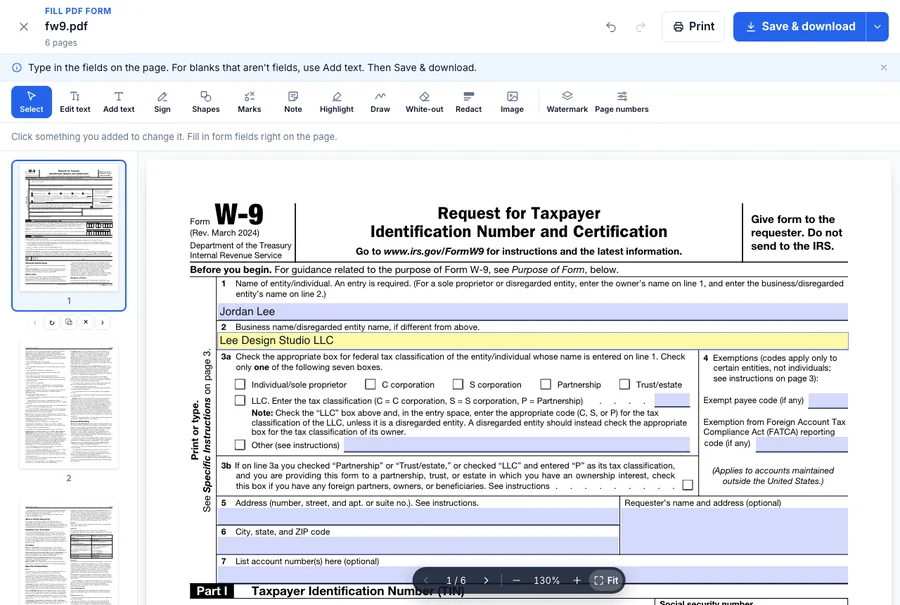
- Open Fill PDF Forms on Dokkiman and choose the form.
- Click a box and type. Tick the checkboxes and pick from any dropdowns.
- If it needs a signature, click Sign and add yours, along with the date.
- Click Save & download. The filled form opens properly in Adobe Reader and every other PDF viewer, so whoever gets it will see your answers.
If it doesn't
Plenty of PDFs are just a scan or a printout saved as PDF, with lines where you're meant to write. There's nothing to click into, but you can still fill them in.
Choose Add text and click where the answer goes, then type. Marks adds ticks and crosses for checkboxes. You can drag anything you add to line it up neatly.
A few tips
- Fill in everything first and sign last, so you don't have to move your signature around.
- Dates in US forms are usually month first (11/01/2026). Check the form if you're not sure.
- If you get stuck halfway, nothing is lost by closing the tab before you download, but nothing is saved either. With a free account you can keep a copy in your documents.
Common questions
- Can I fill in IRS and other government forms?
- Yes. Fillable forms like the W-9 work, and the saved PDF opens correctly in Adobe Reader.
- Is it free?
- Yes, without an account.
- Can I send the form to someone else to fill in?
- Yes, with Request Signatures. Add text boxes and checkboxes for them alongside their signature.