How to sign a PDF on a Mac
Someone emailed you a PDF to sign, and you're on your Mac. There's no need to print it.
Here are two ways: Preview, which comes with your Mac, and Dokkiman in your browser, which also works for Word files and adds a record of the signing.
Choose a document to signWith Preview
Open the PDF in Preview and click the Markup button (the pen tip) to show the markup tools. Click the signature button, then create a signature with your trackpad, or by signing on white paper and holding it up to the camera. Click it to place it, and drag it onto the line.
That's fine for a quick signature. It doesn't add a date for you, and there's no record of when it was signed.
In your browser
- Open Sign PDF on Dokkiman in Safari or Chrome and choose the document. A Word file works too.
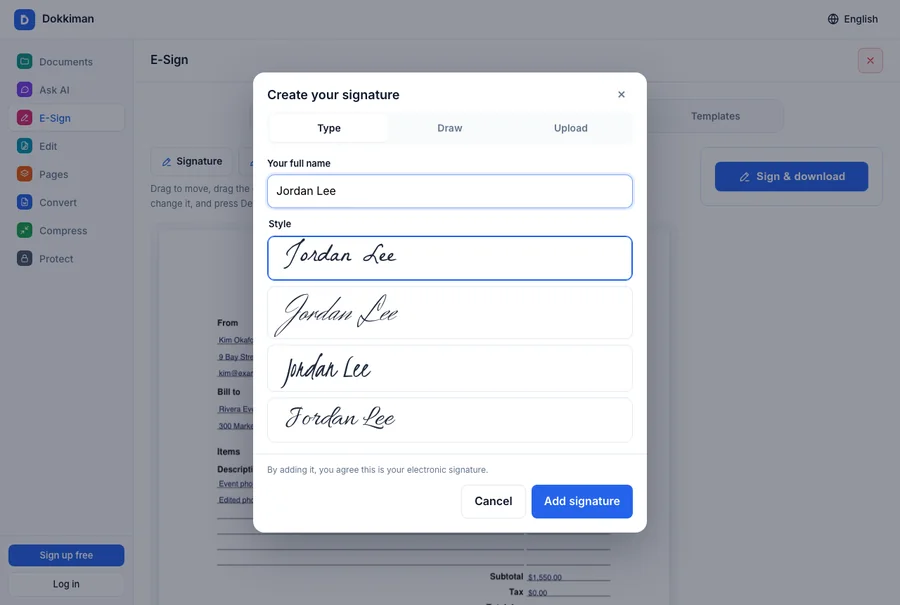
- Click Signature. Type your name and pick one of the handwriting styles, draw it with your trackpad, or upload a picture of your real signature.
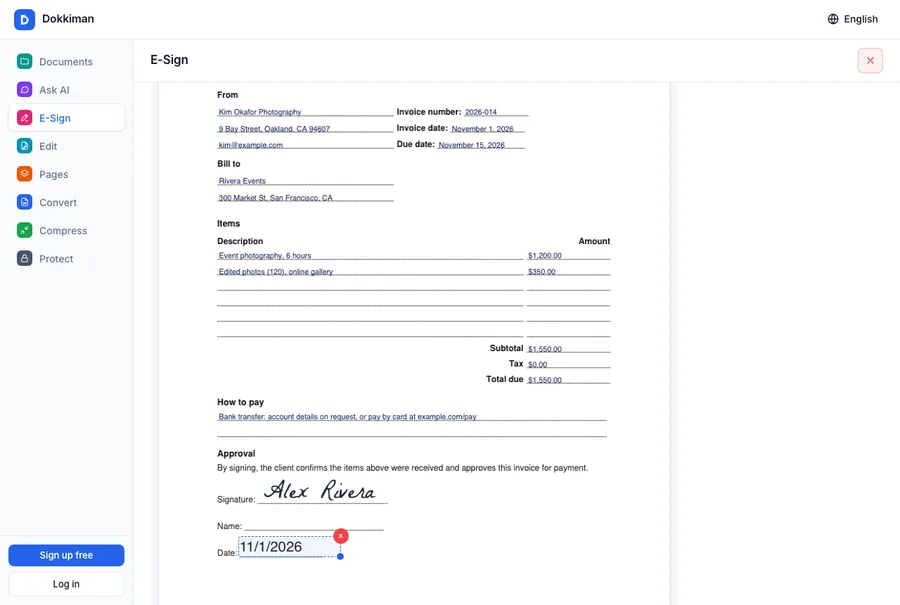
- Drag the signature onto the line, and drag its corner to resize it. Add the date and your initials the same way.
- Click Sign & download to save the signed PDF.
Which should you use?
Preview is quickest for a one-off. Use the browser if you're signing a Word document, need the date added neatly, or want the signed copy to include a page recording who signed and when.
Common questions
- Is signing in the browser free?
- Yes. Signing a document yourself is free, without an account.
- Can I sign a Word document?
- Yes. It's turned into a PDF first, so the layout doesn't change.
- I need someone else to sign too.
- Use Request Signatures: they sign from a link in their email, without an account.