How to edit the text in a PDF
The contract has the wrong date. The flyer has last year's price. You don't have the original Word file, only the PDF.
For small changes like these you don't need to convert anything. You can change the text right in the PDF.
Choose a file to editChanging a line
- Open Edit PDF on Dokkiman and choose your PDF.
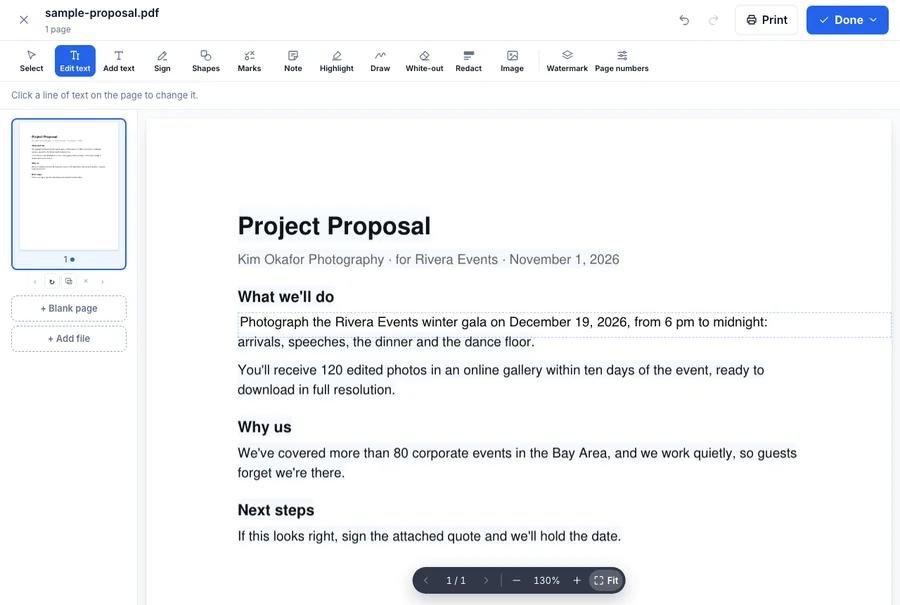
- Click Edit text in the toolbar. Lines you can change get a faint highlight.
- Click the line and type. The new text uses the same size and color as the old.
- Click Done to download the edited PDF.
When the text won't change
If clicking does nothing, the PDF is probably a scan, which is a picture of a page rather than text. Run it through OCR PDF first to turn the picture into real text, then edit it.
For something a line edit can't fix, like a whole new paragraph, you can white out the old text and use Add text to write the new version on top. For a full rewrite, converting to Word is usually easier.
Other things you can change
- Add text, images, a signature, notes and highlights.
- Black out private details with Redact. The text is removed from the file, not just covered.
- Reorder, turn or delete pages, or add a blank one.
Common questions
- Will the new text match the old?
- It uses the same size and color. The font can differ slightly if the PDF uses one we don't have.
- Can I edit a scanned PDF?
- Make it searchable with OCR PDF first, then edit the text.
- Is it free?
- Yes, you can edit and download without an account.