How to convert a PDF to Word
You need to rework a document and all you have is the PDF. Converting it to Word gives you editable text again.
It's quick, but it helps to know what comes across cleanly and what might need a little tidying.
Choose a PDF to convertConverting it
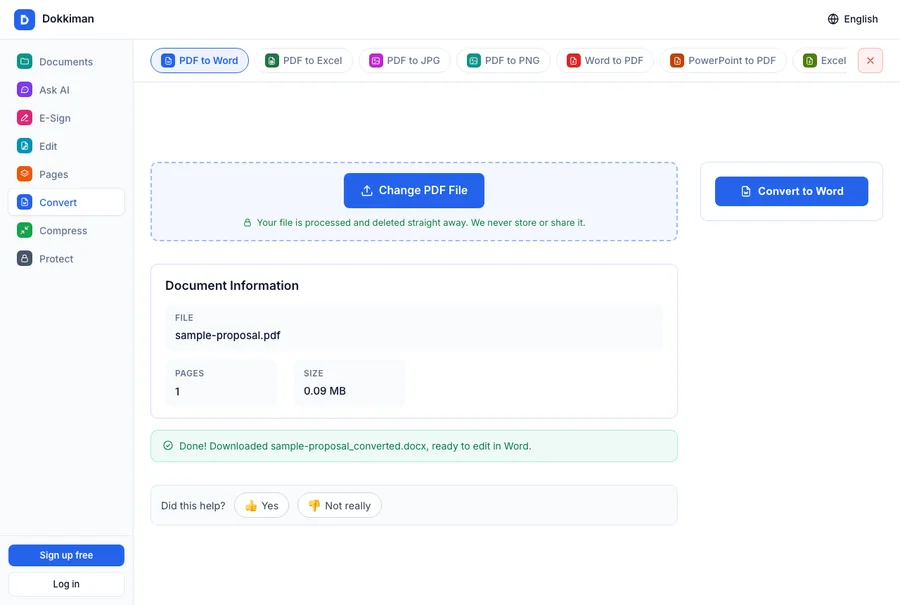
- Open PDF to Word on Dokkiman and choose your PDF.
- Click Convert to Word.
- The .docx downloads when it's ready. Open it in Microsoft Word, Google Docs, Pages or LibreOffice.
What to expect
Ordinary documents, like letters, contracts and reports, convert well: paragraphs, headings and their formatting come across as normal, editable text.
Busy layouts are harder. Several columns, text sitting on top of images, or forms full of boxes may need some rearranging in Word afterwards. That's true of most converters, so it's worth a quick look before you send the file on.
Scans and small changes
A scanned PDF has no text in it yet, only a picture. Make it searchable with OCR PDF first (English or French), then convert it.
If you only need to fix a word or a date, you don't need Word at all. Edit PDF changes the text right in the PDF, and the layout stays exactly as it was.
Common questions
- Will it look exactly the same?
- Simple documents come out close. Complex layouts may need some tidying in Word.
- Is my file kept?
- No. It's converted and sent straight back to you.
- Is it free?
- Yes, without an account.