How to convert a bank statement PDF to Excel (even a scanned one)
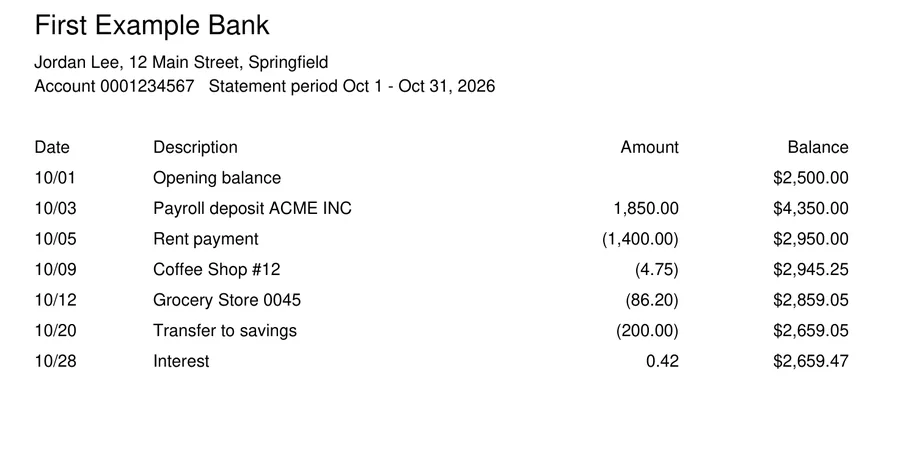
Copying transactions out of a PDF statement usually goes wrong: everything lands in one column, amounts paste as text that won't add up, and negative amounts in brackets like (45.00) stay as words.
Here's how to turn a bank statement PDF into a proper Excel spreadsheet in under a minute, with dates, descriptions and amounts in their own columns, and numbers you can sort, filter and total. It works with scanned and photographed statements too.
Choose a PDF to convertStep by step
- Download your statement as a PDF from your bank's website or app. This gives the best results.
- Go to dokkiman.com/pdf-to-excel and tap Choose a PDF to convert. You don't need an account.
- Tap Convert to Excel. The tables in your statement are found and turned into rows and columns.
- Your .xlsx file downloads. Open it in Excel, Google Sheets or Numbers: each table is on its own sheet, named after its page.
What you get
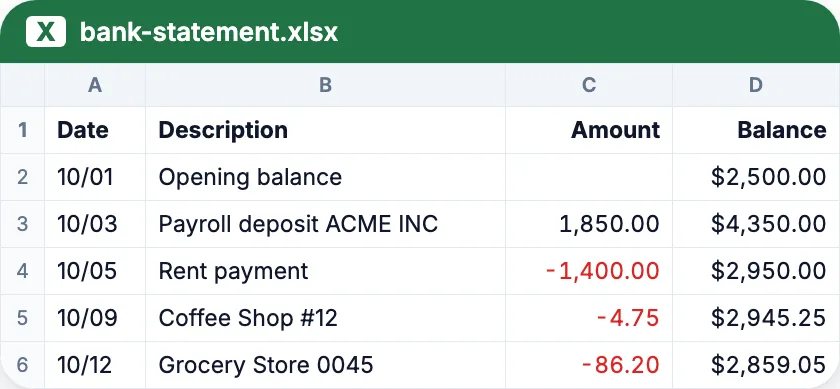
Amounts become real numbers, so totals and formulas work straight away. $1,850.00 becomes 1850, a withdrawal shown as (1,400.00) becomes -1400, and percentages like 15% become 0.15, formatted as a percentage.
Codes that start with a zero, like account or ZIP numbers, stay exactly as they are, because they're kept as text. The first row of each table is in bold and stays at the top as you scroll.
If your statement is a scan or a photo
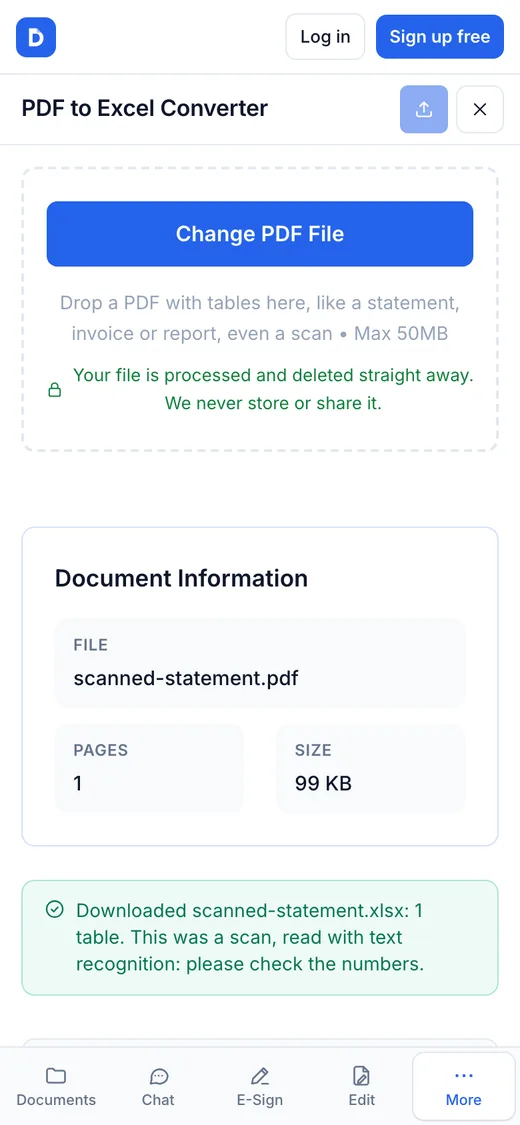
A scanned statement is a picture of the page, so there's no text inside it to copy. Dokkiman reads it with text recognition (OCR) first, then builds the table, and tells you it did: "This was a scan, read with text recognition: please check the numbers." Scans can be up to 30 pages, in English or French.
Have a photo of a paper statement instead? Open it in OCR PDF first to turn it into a searchable PDF (tilted photos are straightened), then convert that PDF to Excel.
Recognition is very good on clear, flat, well-lit pages. A blurry digit can be misread, so compare the totals with your statement before you rely on them.
Tips for the best results
- Use the PDF your bank gives you rather than printing and scanning it: it converts exactly, with nothing to misread.
- Password-protected statements can't be converted. Open the PDF with its password, save a copy without one (for example with Print and then Save as PDF), and convert that copy.
- Long statements are fine: digital PDFs can be up to 200 pages, and every page with a table gets its own sheet.
- Check the starting and ending balance against the spreadsheet: if they match, the transactions in between came through.
Common questions
- Is it free?
- Yes. You can convert statements to Excel without an account.
- Will it work with my bank's statement?
- It works with statements laid out as tables of rows and columns, which is most of them, whether the table has lines or just spacing. If no table can be found, you'll be told so, and nothing is downloaded.
- Is my statement kept?
- No. Your file is processed and deleted straight away. We never store or share it.
- Can I convert it to CSV instead?
- Open the .xlsx in Excel or Google Sheets and save or download it as CSV.